

A familiar security check appears when you visit a website.
It might look like a Cloudflare verification page, a CAPTCHA or an “I’m not a robot” check. But instead of confirming that you’re human and letting you continue, the page asks you to press Windows + R, paste something into the Run box and press Enter.
That isn’t a more advanced type of CAPTCHA. It’s a ClickFix attack.
Unlike traditional phishing, where the attacker tries to steal your password through a fake login page, ClickFix attacks convince you to run a malicious command on your own computer.
The page may look convincing. It could use familiar logos, security language and step-by-step instructions that appear to be part of a normal verification process. But the moment a website asks you to open Windows Run, PowerShell, Command Prompt or Terminal, you should stop.
No legitimate CAPTCHA, Cloudflare verification page or website security check will ask you to paste and run commands on your device.
What is ClickFix?
ClickFix is a social engineering technique that tricks people into executing malicious commands on their own computers.
The attack is usually disguised as a minor technical problem or routine verification step. The victim is told that they need to complete a few simple actions to access a website, open a document, prove they’re human or fix a browser issue.
A ClickFix attack may appear as:
- A fake Cloudflare verification page
- A CAPTCHA or “I’m not a robot” check
- A browser error or security warning
- A Microsoft 365 or Google verification prompt
- A document that supposedly failed to load
- A message claiming that a browser extension is missing
Microsoft has observed ClickFix campaigns delivered through phishing emails, malicious advertising and compromised websites. The visual lure then convinces the user to copy, paste and run a command through Windows Run, Windows Terminal or PowerShell.
The attack doesn’t need to exploit a technical vulnerability in the computer. It relies on the person using it to follow the instructions.
How a ClickFix attack works
A typical ClickFix attack starts when someone opens a phishing link, selects a malicious advertisement or visits a compromised website.
The website may look normal at first. It might even be a legitimate website that has been tampered with. The real page is then replaced or covered by a fake verification prompt.
The instructions commonly tell the visitor to:
- Press Windows + R
- Press Ctrl + V to paste content from the clipboard
- Press Enter to run the command
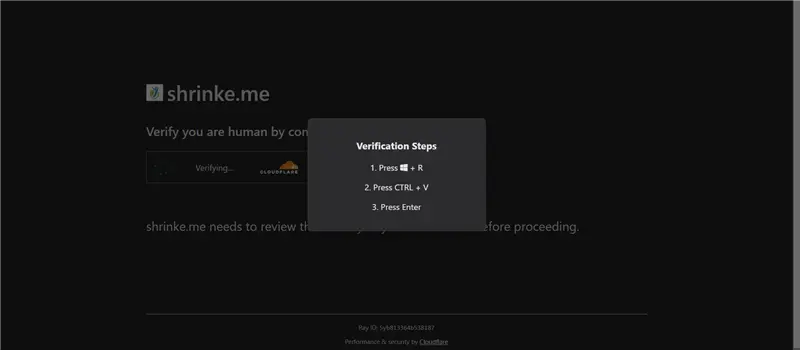
A typical ClickFix attack in three simple steps.
What the visitor may not realise is that the website has already copied a malicious command to their clipboard.
When they paste the content into Windows Run, PowerShell or another system tool, they aren’t entering a CAPTCHA response. They are telling their computer to execute code chosen by the attacker.
That command can then download malware, give an attacker remote access or steal information from the device. Microsoft has observed ClickFix attacks delivering information stealers, remote access tools, malware loaders and other malicious payloads.
The attacker has effectively turned the victim into the installer.
Why ClickFix is different from traditional phishing
Most people have been told to watch for phishing emails that ask them to enter a password, open an unexpected attachment or download a file. We’re also seeing Microsoft Teams phishing on the rise, where an unexpected message or support call can lead to a similar result.
ClickFix uses a different approach.
There may be no password form and no obvious file download. Instead, the victim is told that they need to fix something or complete a verification process themselves.
That difference matters because it can make the request feel less suspicious. Pressing a few keys may seem harmless compared with downloading an unknown program.
ClickFix also uses legitimate tools already installed on the computer, including Windows Run, Command Prompt and PowerShell. Because the person is tricked into launching the command themselves, the activity may get past security measures that would normally block a malicious download.
Why fake CAPTCHA and Cloudflare pages work
CAPTCHA checks are part of everyday internet use. People regularly select a checkbox, identify an object in an image or wait while a website checks their browser.
Most of us try to get through these checks as quickly as possible.
ClickFix attackers take advantage of that familiarity. They copy the language and appearance of a trusted verification page, then add one unusual step to a process that otherwise looks normal.
A fake page may include:
- Cloudflare branding
- A “Verify you are human” message
- A progress indicator
- A realistic-looking error code or Ray ID
- The name of the website being visited
- Instructions labelled as “verification steps”
Attackers have been observed copying the appearance of Cloudflare Turnstile and Google reCAPTCHA, as well as browser errors, Microsoft Word prompts and other familiar platforms.
A familiar logo is not proof that the page is genuine. Even a known website address is not always enough, because a legitimate website can be compromised and used to display a ClickFix prompt.
How to recognise a ClickFix attack
The clearest warning sign is a website asking you to perform actions outside your browser.
Close the page if it tells you to:
- Press Windows + R
- Open Windows Run, PowerShell, Command Prompt or Terminal
- Paste content from your clipboard into a system tool
- Run a script or command
- Disable antivirus or browser protection
- Install a tool to complete a CAPTCHA
Legitimate website verification happens within the browser. It should not require you to open another program or run commands on your computer.
Be particularly cautious if the page creates urgency, claims the verification has repeatedly failed or prevents you from continuing until you follow its instructions.
You don’t need to understand what a command does before deciding it is unsafe. If an unexpected website asks you to run one, stop.
What to do if you see a ClickFix prompt
Don’t follow the instructions on the page.
Instead:
- Close the browser tab.
- Tell your IT team. Provide the website address and explain what appeared.
- Take a screenshot if it is safe to do so. This may help your IT team identify the attack.
- Warn other employees if it appeared on a website used by the business.
- Don’t return to the page until it has been reviewed.
If the prompt appeared on your website, contact whoever manages the site immediately. The website may have been compromised even if its other pages still appear to work normally.
What to do if you ran the command
Contact your IT or cyber security team immediately.
Don’t wait for the computer to behave strangely. Malware designed to steal passwords, browser information or business data may not produce an obvious warning.
Tell your IT team:
- Which website you were visiting
- What the page looked like
- What instructions you followed
- What you pasted and where you pasted it
- Whether any windows opened or disappeared
- Approximately when it happened
- Whether you entered any passwords afterwards
Leave the device switched on unless your IT team tells you otherwise. Follow their instructions about disconnecting it from the network or continuing to use it.
The device may need to be isolated and checked for malicious activity. If you entered a password afterwards, your IT team may also need to secure the account and review its sign-in activity.
Reporting the incident quickly gives them a better chance of limiting the impact.
How businesses can reduce the risk from ClickFix
ClickFix relies on someone following the instructions, so employees need to recognise the point where a verification request becomes suspicious.
The rule is simple:
A website should never ask you to leave the browser and run commands on your computer.
Businesses should also consider:
- Including ClickFix examples in security awareness training
- Giving employees a clear way to report suspicious websites
- Ensuring staff know how to contact IT quickly
- Keeping browsers, operating systems and security tools updated
- Using endpoint protection and monitoring across business devices
- Restricting system tools where they aren’t required
- Monitoring unusual PowerShell and command-line activity
- Limiting local administrator access
- Maintaining an incident response process for affected devices
No single control will catch every ClickFix attempt. The aim is to make the attack harder to complete and suspicious activity easier to identify.
Make the warning easy to remember
ClickFix attacks can appear in different forms, but the behaviour they request is usually similar.
A page may claim to be Cloudflare today and use Microsoft, Google or a browser error tomorrow. The branding can change. The warning sign remains the same.
If a website asks you to open Windows Run, paste a command or launch PowerShell, close the page and contact IT.
A genuine website security check does not need direct access to your computer’s command-line tools.
The sooner an employee recognises that, the less chance an attacker has of turning a fake verification page into a compromised device.
Windstil provides cyber security consulting for Australian businesses. Our active clients enjoy a structured, ongoing approach to Essential Eight, with clear prioritisation, consistent progress and guidance to improve their maturity over time.